What to do when your PHP site goes down (7-step checklist)
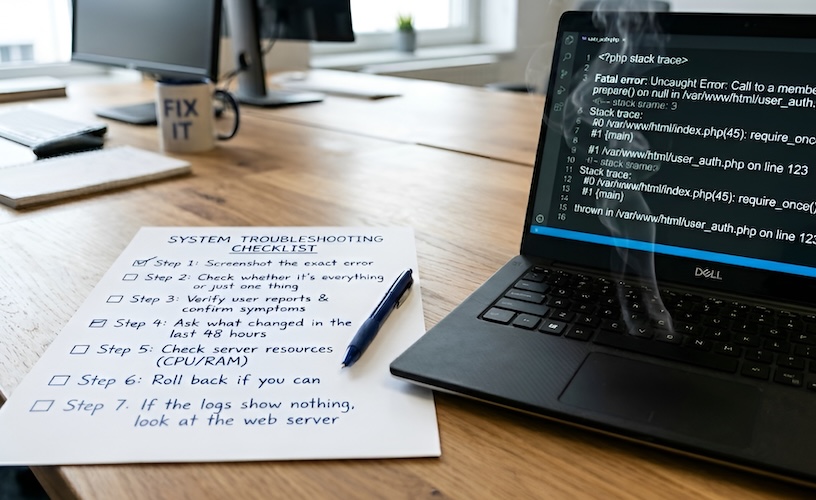
Imagine a situation where a page that was working fine an hour ago is now showing a blank screen, a 500 error, or something even less helpful, and you don't know where to start. It can prevent your customers from ordering, submitting a form, or doing whatever they came to your site for.
Before anything else: stop touching things
Your primary instinct is to redeploy, restart the server, or roll back last night's release, but resist the urge. Every change you make before you understand the cause risks overwriting the evidence, which can turn a recoverable situation into a genuine disaster. Instead, give yourself half an hour to work through this list first.
Step 1: Screenshot the exact error
Before you change a single file, document what you're seeing.
- Screenshot the browser error message
- Copy any text shown on the page (
500 Internal Server Error,Parse error,Fatal error) - Note the time it started (if it's available, check your logs, monitoring, or the first complaint if it was reported by a customer)
This takes 60 seconds and will save hours later, especially if you need to bring in a developer.
Step 2: Check whether it's everything or just one thing
Open two pages you haven't touched recently, like the homepage, the about page, or a product page, and check if they're still working.
- Everything is down — the problem is probably at the server or PHP level (PHP crashed, out of memory, configuration broke)
- One page or feature is broken — the problem is somewhere inside your codebase or a related service (a plugin, a package, a database query, or an API call)
This tells you where to look next.
Step 3: Read the PHP error log
Your error logs are the most obvious place to start. Most hosting control panels (cPanel, Plesk, Laravel Cloud, or Laravel Forge) have a built-in log viewer — no server access needed. If you can connect via SSH, you can also check the log files directly:
/var/log/nginx/error.log/var/log/php-fpm/error.log/var/www/yoursite/storage/logs/laravel.log(Laravel)/var/www/yoursite/wp-content/debug.log(WordPress, if debug logging is on)
Look for the most recent Fatal error, Warning, or Exception, which gives you the file path and line number to investigate.
Something like this tells you exactly where to start:
Parse error: syntax error, unexpected string content "';", expecting "," or ";" in /var/www/code.php on line 2
Step 4: Ask what changed in the last 48 hours
Sites don't usually go down for no reason. The most common triggers:
- A plugin, package, or dependency update — check your package manager logs or version control history (Git)
- A PHP version change — hosting providers sometimes upgrade PHP automatically; check your current PHP version
- A recent deployment — did anyone push untested code this morning?
- A cron job — a scheduled task may have run and broken something silently
- A traffic spike — the server may have run out of memory under load
If something changed in that window, start there.
Step 5: Check server resources
If no code error shows up in the logs, the site may have gone down for infrastructure reasons. Your hosting provider's dashboard is the quickest place to check — most show CPU, memory, and disk usage graphs, and a spike just before the site went down is a strong clue. If you have server access, these are the three things worth checking directly:
Disk space — a full disk kills PHP immediately. Run df -h when connecting to your server through SSH. If any partition shows 100%, that's your answer.
Memory — PHP-FPM processes can exhaust available RAM and crash. Check system logs (dmesg, /var/log/syslog) for OOM (out of memory) killer entries.
Database — if your database goes down, every page that hits it fails instantly. Check its status with systemctl status mysql (or mariadb).
Step 6: Roll back if you can
If you've traced the problem to a recent change and can't fix it immediately, the fastest path back to a working site is reverting.
- Git: revert or roll back to the last working commit
- WordPress: restore the previous plugin version from your backup
- PHP version: most hosts let you downgrade through their control panel
- CraftCMS / Statamic: restore from the most recent backup (you have one, right?)
A working site on an older version gives you breathing room to fix things properly — without your clients noticing.
Step 7: If the logs show nothing, look at the web server
Sometimes PHP is fine, but the web server sitting in front of it is the problem — this is worth checking with your host's support if you're not sure where to start. If you have server access:
- Check that Nginx or Apache is running, and review the error logs under
/var/log/nginx/error.logor/var/log/apache2/error.log - A
502 Bad Gatewayusually means the web server can't reach PHP-FPM Permission deniederrors often appear after a deploy changed file ownership
Still can't pinpoint the problem?
Some bugs hide well — a particular database query, a specific request path, a race condition that only fires under load. At that point you need a developer.
If you've followed these steps and still can't track down the issue — or you'd rather not spend your afternoon debugging someone else's code — this is exactly the kind of thing PHPFixer handles.
I diagnose PHP emergencies with a clear scope and fixed pricing. Contact me today and tell me about your problem!
Request a free bug check